2009-10-25

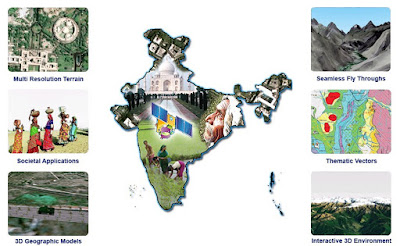
Google Earth க்கு சவால் விடும் ISRO வின் BHUVAN தளம்
Posted by Dhiya  
Tagged as:
4:04 PM

Google Earth க்கு சவால் விடும் ISRO வின் BHUVAN தளம்

http://bhuvan.nrsc.gov.in/ தளத்தில் பதிவிறக்கம் செய்யலாம்
Google Profile - Google's New feature

Posted by Dhiya  
Tagged as:
4:00 PM

Google profile

A Google profile is simply how you present yourself on Google products to other Google users. It allows you to control how you appear on Google and tell others a bit more about who you are. With a Google profile, you can easily share your web content on one central location. You can include, for example, links to your blog, online photos, and other profiles such as Facebook, LinkedIn, and more. You have control over what others see.

You can also allow people to find you more easily by enabling your profile to be searched by your name. Simply set your existing profile to show your full name publicly.

If you've been writing reviews on Google Maps, creating articles on Google Knol, sharing Google Reader items, or adding books to your Google Book Search library, you may already have a profile

Follow this link,
Google profile


2009-09-07

Mm

Posted by Dhiya  
Tagged as:
2:00 PM

Cyanide & Happiness- Waiting for the Bus

Posted by Dhiya  
Tagged as:
1:29 PM

Posted by Dhiya  
Tagged as:
11:45 AM


New Trends in ICTs Development Making Life Easier for End-users

From the time of machine code programming and mechanical adding machines through vacuum-based systems to very large integrated circuits and very high level programming languages, the main trend and focus has been the same over time – empowerment of the end-user. Recent developments have seen this initiative even improve further with several advancements being made on how we perceive the computer in the workplace.

The shift from command-driven to Graphics User Interfaces (GUIs)

In the past, the end-user was required to literally understand the command set of many software packages in the market like Dbase III+, Lotus 123, and WordPerfect 5.1. Operating systems such as MS-DOS made extensive use of the command prompt. MS-DOS had a host of both internal and external commands that the end-user was required to master in order to use the computer competently. Their syntaxes, switches, parameters and the like had to be understood. This sidelined many with the urge to use the computer but the inability to master the intricacies of software use. With the advent of Windows and Windows-based software, the user was given more flexibility and power to make maximum use of the computer. This saw many end-users begin to appreciate computers in the workplace because easy to use GUIs demystified them. All that end-users needed to know were the icons and menus to initiate processes and suddenly they would be involved in initiating complex processes such as linear and multiple regressions, document merging, spell-checking and so on at the mere click of a mouse button, giving them control over otherwise mysterious processes.

The GUI has removed the need to know the underlying command sets needed to achieve a task by providing an interface that is user friendly and easy to learn. The interface uses normal English to request users for information that would be required to complete a complex task. Now end-users need to only master a few basic processes to invoke very complex instruction sets that perform highly complex operations. The banker, for instance, no longer needs to master let alone know COBOL to input customer transactions! This is easily achieved now through a user-friendly window form thereby reducing time consumed in punching out data sequences!


The emergence of Object-Oriented Programming (OOP)

From the days of machine to high level languages, programming has seen significant developments all geared towards enabling the end-users achieve targets in the shortest time possible – especially in these times of highly capitalistic and competitive economies where time is money. By moving from binary notations to mnemonics and finally to object oriented programming where users only need to drag and drop pre-written self-contained, reusable components, software design is no longer entirely the preserve of specialists – it has come closer to end-users. A computer operator can now use such objects to enhance the performance of application software in the workplace through customisable tasks made possible by macros. Talk of Rapid Application Development (RAD) come home to roost!

By quickly glancing at the source code of a program, one can easily make head and tail of the concept being developed – thanks to very high level programming languages. The end user no longer needs to spend hours coding sub-routines and functions that are part of a very lengthy and tedious procedural activity, they only need to conceptualise the problem at hand and communicate this appropriately to the computer and leave the tedious work to the Control unit.


The birth of mobile computing

Gone are the days when end-users could not conceptualise finalising an important project proposal without going to the office - because that was where the computer was! With the advent of laptops, mobile phones, wireless networks, and so on, company targets can still be achieved even when people are separated by geographical boundaries from their workplace. This has given the term ‘office’ a new meaning. The concept of the home office has been made a reality and now the corporate manager can still compile his reports in time and watch his favourite TV show at the same time. This concept of enhancing mobility has greatly empowered the end-user. With wireless communication, executives can get on-the-minute updates on stock trends and country profiles of prospective investing grounds long before their planes touch ground on their way to an investors’ meeting. This is made possible via internet connectivity.

The emergence of new information technology infrastructures

Computing is no longer looked at in isolation. The present day end-user perceives a computer in a different perspective. The mention of a computer brings to mind inter-connectivity and remote accessibility of pooled resources. This concept of networking has been there for sometime and the terms LAN, WAN, CAN and MAN are common. Now a new concept in this area promises even greater collaboration and networking – the new IT technologies take the concept of networking a level further by combining several systems together to come up with a collection of interlinked heterogeneous systems. Points Of Sale (POS), PDAs, cellular phones, LANS and mobile computing devices all operating on varying transmission protocols are inter-linked together with the sole objective of placing information at the end-users’ palm. The end-user can now request for ambulance services by filling out and sending an online form that is relayed to a hospital database or emergency mobile unit that dispatches the nearest assistance within a fraction of time. In the comfort of a home PC the end-user can shop on-line without a problem – a process that involves collaborative linkages with his bank, the supermarket, ISPs and security agencies that ensure a clean transaction is facilitated.

The arrival of the Internet.

With the development of the Internet, the so-called information superhighway, the end-user can not only communicate cost-effectively, but he can engage in hi-Tec teleconferencing where persons are pooled together in board meetings in virtual space. Technologies like Usenet, Internet Relay Charts (IRC) and e-mails have made communication so cheap and effective thereby transforming the world into a global village. With the use of very user-friendly GUIs, users can navigate through hypertext with ease obtaining very valuable information about the world in their living rooms. The internet has allowed organisations and corporations to start thinking beyond their offices and local markets – it has broken geographical boundaries allowing greater collaboration, communication, bi-lateral and multi-lateral trade. At the end of the day the end-user gains the power of communication in a way never imagined before. Gone are the days of unreliable snail-mails that took ages and were more costly and often times plagued by theft.

2009-08-29

How to save your files and your sanity

Posted by Dhiya  
Tagged as:
3:58 PM


How to save your files and your sanity

Even before you save a single document on your computer, your hard disk is bristling with files.

Your operating system – Windows – consists of hundreds of files placed in a tree of folders at installation time. Similarly, every application installed on your computer – whether it's a word processor, spreadsheet, Internet browser, game, graphics editor or anything else – consists of one or more files occupying their own folders.

Once you start working, surfing or playing you adds to these hundreds, possibly thousands, of files, until your hard disk is awash with files.

No wonder, then, that a file occasionally goes astray. It's easy to forget what name you've given a document, or which folder you placed it in.

No need to despair. In fact, it's pretty hard to lose a file completely unless you delete it (even then you can often recover it) or copy another file with the same name over the top of it. Windows comes with an effective file snifferdog and, in addition, you can do a lot of things yourself to prevent files going astray in the first place.

Computing Rule #1

Most files go missing because you fail to pay attention when you're saving them, or because you saved them so long ago they've become no more than a faint echo in your memory banks.

For computing newcomers, noticing exactly what you do when you save a file is crucial. And really, it's very simple to do. It comes back to the number one computing rule for beginners: read the screen!

From observing many new users in action, my guess is the first dozen times most people save a file their heart rate accelerates, their eyes glaze over, and they're reduced to a state where they hit buttons and pray.

There's really no need for this level of terror, because sitting in front of you – in the file save dialog box you use to save a file – is all the information you need.

The Save dialog box

When you click the Save icon in a program, a Save As dialog box appears. The dialog box can take on various forms, but most programs use the standard Windows 95/98 dialog box with slight variations.

Take a close look at the dialog box shown here (click the picture to see a full-size version). This is a dialog box from Microsoft Word 2000 and, while it has a couple of new features, most of what you see here is what you'll find in most Save dialog boxes whether in a Microsoft product or a product from any other developer:

  • A File Name box where you type the file name.
  • A Save As Type box where you can choose the format in which to save the file.

For instance, a graphics program will let you save graphics files as bitmaps (BMPs), or GIFs or JPGs (used on the Internet), as well as in many other formats. You choose which format you want from the Save As Type box when you save the file.

Similarly, a Save dialog box for a word processing program will let you save your documents in native or default format, or as plain text, as HTML, or in a variety of other word processing formats. 'Native' or 'default' means the program's own preferred style. Microsoft Word 97, for example, saves files by default in Word 97 format. It also lets you save files in Word 95 format, Word 2 format, Word formats for the Macintosh, WordPerfect format, and so on.

  • A Save In box at the top of the dialog box, where you select the folder and drive in which to save the file.
  • Additional folder management icons. To the right of the Save In box there are several icons which let you quickly move to the folder above the one you're currently in, create a new folder, and switch between list and detail views of your files. Some programs, such as Microsoft Office, add additional icons and buttons for added flexibility and power, but you'll always find these standard components.
  • A Save or OK button (they're equivalent in this context), and a Cancel button which you use to wriggle out of saving a file. Some dialog boxes have additional buttons, such as an Options button.
  • This Save dialog box also features a series of shortcut buttons down the left-hand side. These buttons let you quickly jump to frequently used folders where you save your documents, such as the My Documents folder or the Desktop. These shortcut buttons are new in Microsoft Office 2000.

While there are many variants on the Save and Save As dialog boxes – such as WordPerfect's supercharged dialogs – the features mentioned above are almost universal. Get accustomed to looking for them.

Save it

When it comes to saving a file, take the time to read the dialog box. First, choose where you want to store your document – this is the key to not losing your file in the first place.

To select where to save your file, click the little arrow at the right of the Save In box to move through folders, drives and the desktop. You can also double-click on folders in the folder and file list to open them. Practice moving about so you get to know your way around.

Once you've chosen where you're going to store your file, choose a name for the file and type it into the File Name: box. If you want to select a different file type from the usual one your program uses, select that from the dropdown list provided.

Then, click OK or Save and you're done.

When you go to open a file, the Open dialog box will look pretty familiar. Use the Look In: or Directories: section to locate the folder where the file was saved, make sure you've chosen the correct file type to display, and then select the file from the list displayed and click OK or Open.

If you take enough care in this process, you'll rarely lose a file.

Preventative measures

Apart from taking things slowly and carefully when you're saving files, you can use a variety of preventative measures to ensure you know where your files are lurking.

The first way is to get your folders organised. My esteemed colleague, David Flynn, who is the personification of organisation (I am in awe of this fella, who even has a classification system for his pencils) has a very neat way of doing this.

He has one folder, called Docs, where he stores all his documents. They don't all go in higgledypiggledy, of course. He creates sub-folders within this single Docs folder where he stores different types of documents.

Sound familiar? If you're using Windows 98 or later you'll already have a My Documents folder created for you and conveniently located on the Desktop (in Windows XP it's hidden away, but you can always drag a shortcut to the folder onto your Desktop). Windows 98, Me and XP also make the My Documents folder easy to access from most standard dialogs. Microsoft probably swiped this idea from my friend David.

The advantages to this system are obvious: there's only one folder (and its contents) you need to search to find any document you create and, when it comes to backing up your documents, you can do it by specifying that one folder.

This makes a lot of sense, and if you have any degree of organisation, I urge you to follow in Mr Flynn's steps and take advantage of the My Documents folder (or create your own if you're using Windows 95).

Strategies for file slobs

Not all of us are so organisationally blessed. Despite good intentions, the file slobs among us end up with files all over the place – in our carefully created Docs folder, on our Desktop, in whatever folder a program uses as its default folder, all over the place. Sometimes this is deliberate, at other times we simply go with the flow, and end up with a document maelstrom.

If you belong to the latter group of people and have files stashed all over the place, you can still increase your chances of keeping track of files by using consistent file naming conventions.

Strangely enough, this was probably easier in the days of DOS and Windows 3.1, when we were restricted to files with a maximum of eight characters in the filename and a three-character extension. This rigidity had a payoff in forcing us to work out strict naming conventions that made it possible to identify the file contents.

With the generous long filenames introduced in Windows 95, it's much easier to get into trouble. You might find yourself naming one file 'Letter to Mary about the problems we're facing in inventory control', and then later sending another letter to Mary about the same subject, but calling it 'Stock tracking probs'. When it comes time to find all the correspondence dealing with your inventory control woes, you may well find you've developed a file tracking problem into the bargain.

Try to keep some consistency in your file naming, and you'll drastically reduce the chances of losing track of a file.

Saving and Saving As

What's the difference between the Save option and the Save As option found on most file menus?

The Save As option is used the first time you save a file. It lets you choose a filename and location for the document you're saving.

The Save option saves a document you've previously saved, writing directly over (and obliterating) the earlier version. Basically, it's like updating the saved copy of a document. When you Save a file, you normally won't be presented with a dialog box.

However, there's an exception. The first time you save any file, whether you use the Save or Save As options, you'll be presented with the Save As dialog box, so you can initially give the file a name. In this case, the two commands are identical.

You can also use the Save As option to make a copy of an existing document. Say, for example, you've finished writing a report and saved it on your hard disk. You can use the Save As command to make a copy of this document in a different location, such as on a floppy disk, or with a different name.

When you use Save As in this manner, it's important to keep track of which file you're working on so you don't end up editing the document on floppy and leaving your original out-of-date. One way to ensure you don't edit the wrong version is to change the name of the copy of the document.

For instance, say you create a budget using Microsoft Excel and save it on your hard disk with the name Budget for 2000. You can create a copy on a floppy disk by placing a floppy in the drive, opening the File Menu and choosing Save As. In the Save As dialog, click the down-arrow beside the Save In box and select your floppy drive from the list. In the File Name box, instead of keeping the name Budget for 2000, type something like Budget for 2000 on Floppy. Then click the Save button and close the worksheet. If you want to make more changes to your original, you'll be able to recognise it immediately by its name.

Our Sponsors

Viewers

Translate

Proudly Powered by Blogger.
back to top